Wednesday, 15 August 2007

File Transfer Protocol (FTP) - FileZilla

I think most people know this software especially those who have their own webspace. But since it is an open-source program so I have to include in as well.

Definition of FTP
FTP or File Transfer Protocol is used to transfer data from one computer to another over the Internet, or through a network. Specifically, FTP is a commonly used protocol for exchanging files over any network that supports the TCP/IP protocol (such as the Internet or an intranet). (Ref: Wiki)

I think by giving example will make the definition clearer. Most common use of FTP is to transfer files from client (e.g your laptop, desktop) to the server (e.g. webhosting like bravenet and so on), and vice versa. So if you are making a website, you need this software to upload your html, php, mp3 (you name it) files to the server.

note: usually webhosting provides file upload utilities using http protocol, but using ftp will make your life easier.

FileZilla is a free, open source FTP client for Windows. It supports FTP, SFTP, and FTPS (FTP over SSL/TLS). The main features are the site manager, message log, file and folder view, and the transfer queue. (Ref: Wiki)

Ok la, just proceed to the technical usage.

Installation:-

1. Download the program here. (current release is ver 2.2.32, and dl the .exe file)

2. Install it as usual but make sure you read the instruction carefully. It's your decision.

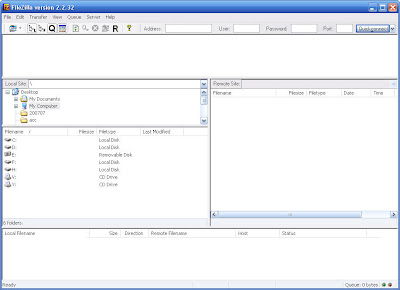
3. The default configuration is good enough, so I don't think there is need to change the program's setting for simple task. The program screenshot is as below.


How to Use:-

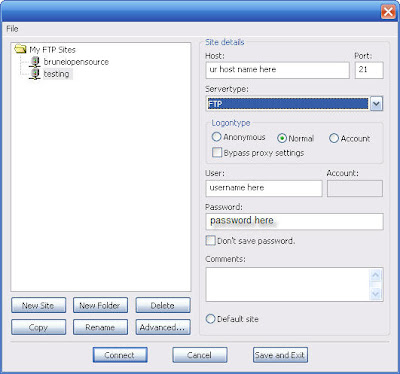
1. On the menu bar at the top, click File->Site Manager, and then a pop-up window will appear. Click new site, and then create the connection name e.g testing. Then click Save and Exit.


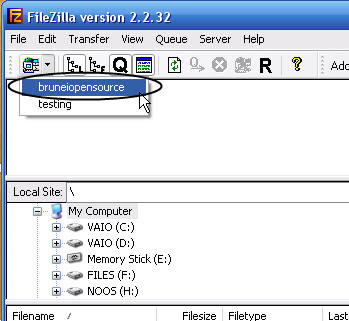
2. To initiate a connection to the server, click as shown below. In this example I try to connect into my bruneiopensource free server.


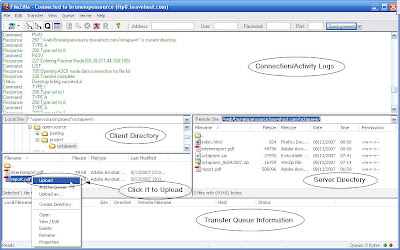
3. Once connected, then user can upload/download files between the client and the server. I added few comments in the screenshot, hopefully it will be helpful.


Ah.. I think some of my visitors use other browser instead of mozilla firefox. Though firefox is an open-source but it will be boring if I post about firefox here, because it is well known (if you don't know it.. then google it). It's a matter of choice so there is no harm to use IE, Opera, Konqueror.. and so on.

Remember: open-source is about freedom. Bah.

Thursday, 9 August 2007

CD Writing Software - InfraRecorder

What I have posted so far is still focusing on open-source applications in microsoft windows because I know most Bruneians are using ms windows. (p/s: i'm not ready to share about linux)

There are not many open-source cd burner program written for microsoft windows. Most of them are written for linux operating system only. And I like to share a cd/dvd burner called InfraRecorder.

InfraRecorder is a free graphical CD and DVD writing program for Microsoft Windows, licensed under the GPL version 2. Started by Christian Kindahl in 2006, InfraRecorder uses the cdrtools software to perform the actual burning. InfraRecorder was born in the Google Summer of Code 2006. (Ref: Wiki)

Ok, since I don't have to explain anything else....

Steps

1. Download the program here. (current latest version is 0.43.1)

2. Install it as usual.. would take less than one minute.

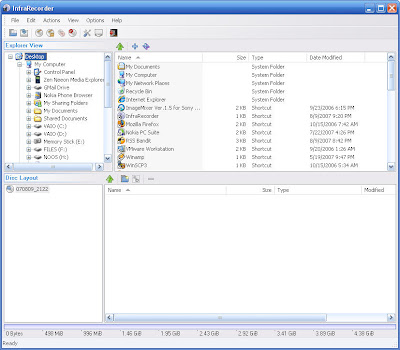
3. Done!!! I don't think I should give examples on how to use this program, it's just like other cd burning programs. I'll leave you with the program screenshot.


Friday, 3 August 2007

CD Ripper - CDex

I'm quite busy of doing nothing recently, the main reason for me not updating this blog. Ok, the next open-source's tool I want to introduce is CD Ripper called CDex.

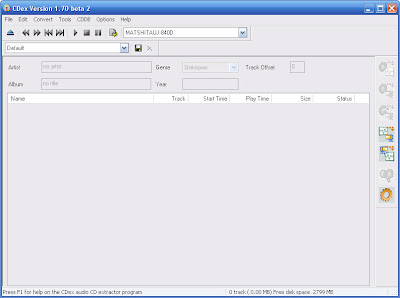
CDex is able to convert CD audio into several formats including WAV, MP3 (using the LAME encoder), Ogg Vorbis, VQF, APE, and many others. It supports FLAC and other codecs using an external encoder. For convenience, it supports CD-Text to allow ripped tracks, with reduced user effort, to have the names of songs, artists and albums (Ref: Wiki).

I think the above paragraph has clearly explained the use of CDex. Let me proceed on how to use the program.

Steps

1. Download the program here. Get the latest installer version, current one is CDex 1.70 (beta 2).

2. Install it as usual, should be easy.


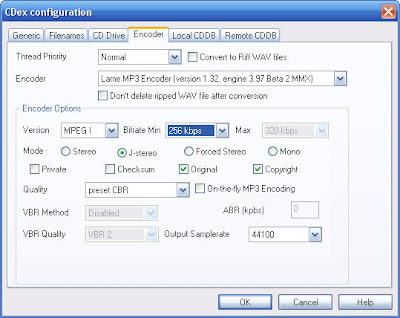
3. Click Options->Settings->Filenames to set the directory of mp3 to be saved. And click Options->Settings->Encoder to change the encoder, in this example I'm going to use LAME encoder. The screenshot below shows the setting that I always use for CD Ripping.


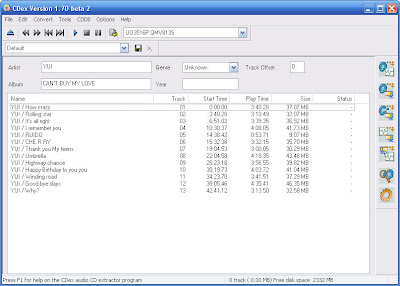
4. To rip an audio CD, just insert the CD into the cd drive. Select all tracks by clicking Crtl+A, and then click F9.


I think that is enough for today. Bah.

Monday, 9 July 2007

Eraser

Eraser is a secure data removal tool for Windows. It completely removes sensitive data from your hard drive by overwriting it several times with carefully selected patterns. (Ref: SourceForge)

Normally, when you delete files from the hard drive, the deleted files can be recovered by recovery software. This eraser tool helps us to delete files using certain overwriting methods until they cannot be recovered. This kind of software is usually used in Department of Defense (DoD), to delete top secret files securely...

Steps for using the software

1. Download it here. (Current version is 5.82)
2. Install it by following the installation wizard.

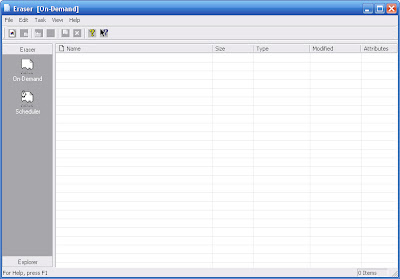
3. The program main window


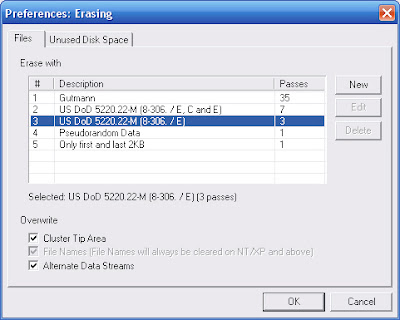
4. Go to the menu bar, and click Edit->Preferences->Erasing.


The screenshot above shows five method of erasing files (or unused disk space). GutMann is the most secure one but it takes time to erase.

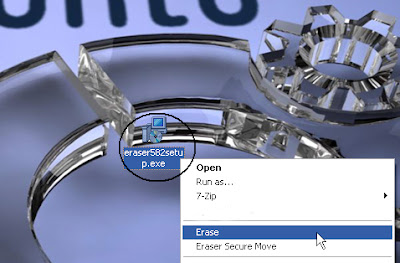
5. To erase any file securely, just right click the file and then click 'Erase'!!


Let's erase our secret!!!