Showing posts with label Tools. Show all posts

Wednesday, 15 October 2008

Mozilla Thunderbird

Mozilla Thunderbird is a free, open source, cross-platform e-mail and news client developed by the Mozilla Foundation. (Ref: Wiki).

If you are familiar with outlook express and microsoft outlook, this is a sort of an alternative. I'm just going to share this program as an email client. Let me just go straight to the installation + configuration steps.

Steps:

1. Download the program here and then install it. In this example I'm using Thunderbird ver. 2.0.0.17

2. Launch the program and you should see a pop-up window as shown below, otherwise you click Tools->Account Settings->Add Account.


3. Select the radio button called Email account. Click Next, put your name and the email address as shown below. In this example, I use my gmail account with imap enable.


note: for other email provider, get the server information (e.g server address, port number) from the email provider.

4. Enter imap.gmail.com in the Incoming Server field as shown below and click Next.
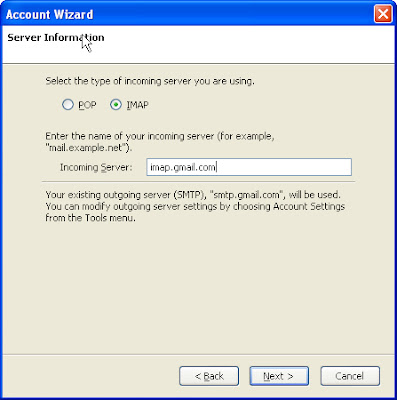


5. You will be asked for the Incoming User Name field, leave as it is and click Next. Then you will be asked for the Account Name, you can leave as it is and click Next. You will see a pop-up window as shown below. Click Finish.
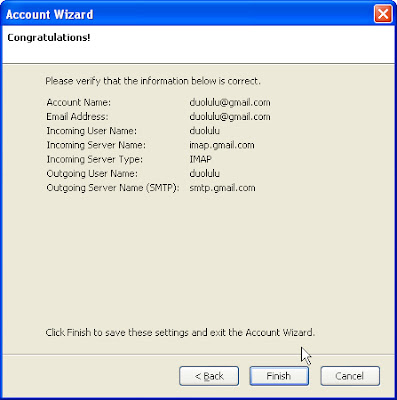


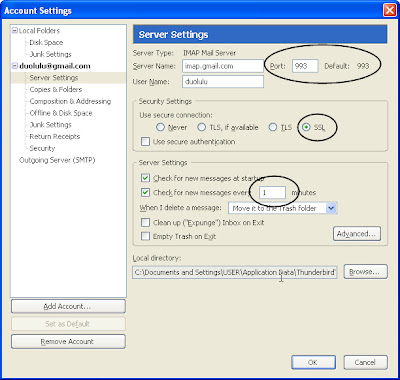
6. Go to Tools->Account Settings. Click Server Settings. Set the settings as shown below i.e port = 993, Secure Connection = SSL, Check for New Messages Every = 1 minute !! Then just click OK.


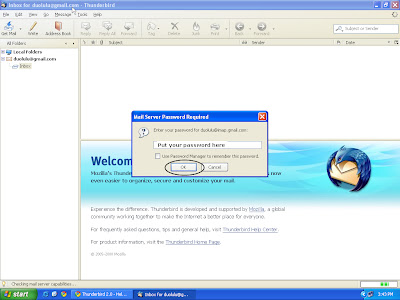
7. Click Inbox, at the left panel. A pop-up panel will appear asking for your email password. Enter your password then click OK.


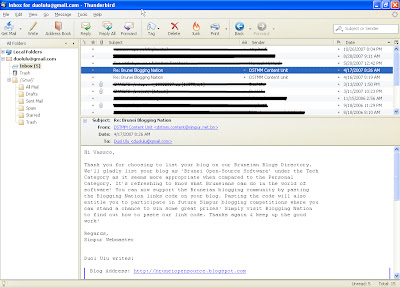
8. All your emails will be loaded, just click any mail you got to read it. Feel free to explore!!


I know most people read their email through a web browser. One advantage of using email client program is you don't have to check your email manually, like having a habit of checking email every 5-10min. With this program, you will be notified automatically once you receive new mail.

Monday, 20 August 2007

Email Notifier - PopTray

I have many email accounts (during the old days), use them for different reasons. There is a time where I'm lazy to login into every of my email accounts just to see if there is new email. Ahh.. just now I login into my Brunet account, the last time I login was a long time ago, maybe almost two years. Actually, I can leave my ThuderBird open so that it can constantly check for new emails but I want another way to auto check for new emails.
"PopTray started as a little POP3 mail checker I wrote, because I couldn't find a freeware program that had all the features I wanted. Since then, new features have been added by request. After years of refinement PopTray 3.0 has now become a full-featured, customizable, e-mail notifier, but keeping its ease of use" (Ref: Renier Crause, PopTray)

Basically, the program is written for email providers that support POP protocol (e.g. Brunet mail, Yahoo mail). Later, plugins are created to support other mail protocols such as POP SSL (e.g GMail), IMAP, Hotmail Plugin, GMail plugin and so on. It has another interesting features, you can read more about them in the website here.

Time for technical stuffs!!!

Steps:-

1) Download the program here. (Current latest version is ver 3.2)

2) Install it as usual!!! (Type of installation: Full)

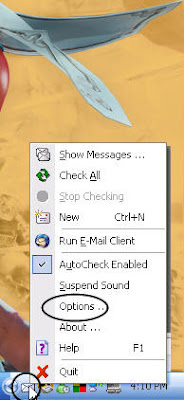
3) After installation, you should notice an icon of "mail" inside your taskbar. Right-click the icon and click Options. See the screenshot below (I like my wallpaper.. :D).


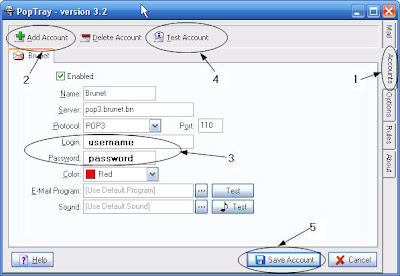
4) A pop-up window will appear. To add a mail account, just follow the sequence like in the screenshot below. In this example, I use Brunet mail, so the server address is "pop3.brunet.bn".

note: for other email provider, get the server information (e.g server address, port number) from the email provider.


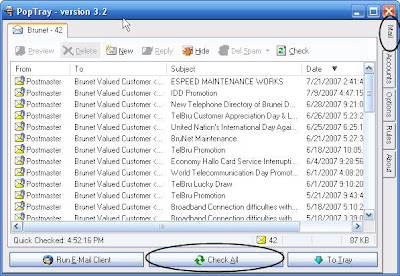
5) By default the program will check for new mail in every 5 minutes. The screenshot below (actually got many spam plang.. deleted them) shows the preview of any new mails received. Click "To Tray" to run the program in background.


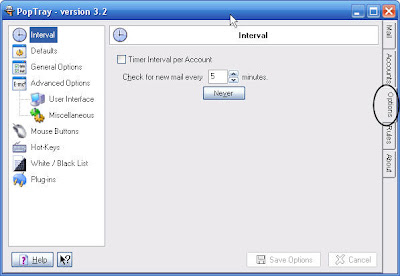
5. Ah.. what else, actually I usually change the program Options. You can explore it there, like double-click the trayicon behavior, start-up behavior, plug-in and so on!!!

Wednesday, 15 August 2007

File Transfer Protocol (FTP) - FileZilla

I think most people know this software especially those who have their own webspace. But since it is an open-source program so I have to include in as well.
Definition of FTP
FTP or File Transfer Protocol is used to transfer data from one computer to another over the Internet, or through a network. Specifically, FTP is a commonly used protocol for exchanging files over any network that supports the TCP/IP protocol (such as the Internet or an intranet). (Ref: Wiki)
I think by giving example will make the definition clearer. Most common use of FTP is to transfer files from client (e.g your laptop, desktop) to the server (e.g. webhosting like bravenet and so on), and vice versa. So if you are making a website, you need this software to upload your html, php, mp3 (you name it) files to the server.

note: usually webhosting provides file upload utilities using http protocol, but using ftp will make your life easier.

FileZilla is a free, open source FTP client for Windows. It supports FTP, SFTP, and FTPS (FTP over SSL/TLS). The main features are the site manager, message log, file and folder view, and the transfer queue. (Ref: Wiki)

Ok la, just proceed to the technical usage.

Installation:-

1. Download the program here. (current release is ver 2.2.32, and dl the .exe file)

2. Install it as usual but make sure you read the instruction carefully. It's your decision.

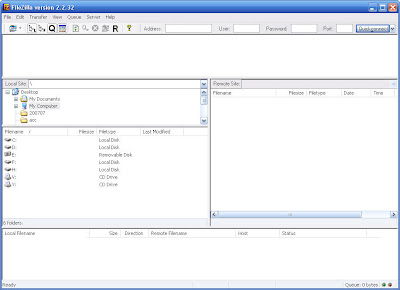
3. The default configuration is good enough, so I don't think there is need to change the program's setting for simple task. The program screenshot is as below.


How to Use:-

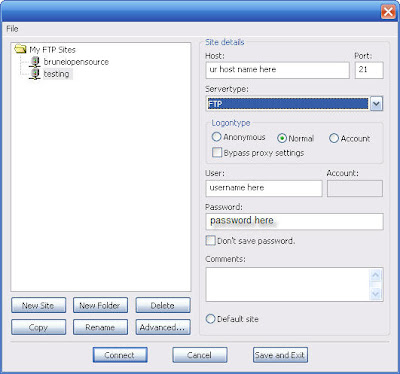
1. On the menu bar at the top, click File->Site Manager, and then a pop-up window will appear. Click new site, and then create the connection name e.g testing. Then click Save and Exit.


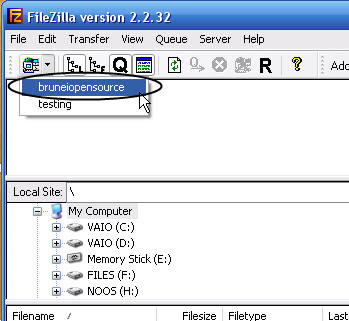
2. To initiate a connection to the server, click as shown below. In this example I try to connect into my bruneiopensource free server.


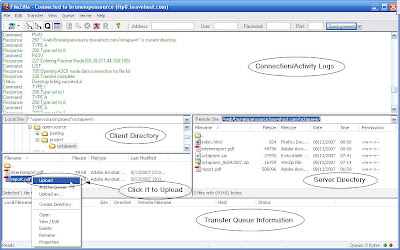
3. Once connected, then user can upload/download files between the client and the server. I added few comments in the screenshot, hopefully it will be helpful.


Ah.. I think some of my visitors use other browser instead of mozilla firefox. Though firefox is an open-source but it will be boring if I post about firefox here, because it is well known (if you don't know it.. then google it). It's a matter of choice so there is no harm to use IE, Opera, Konqueror.. and so on.

Remember: open-source is about freedom. Bah.

Thursday, 9 August 2007

CD Writing Software - InfraRecorder

What I have posted so far is still focusing on open-source applications in microsoft windows because I know most Bruneians are using ms windows. (p/s: i'm not ready to share about linux)

There are not many open-source cd burner program written for microsoft windows. Most of them are written for linux operating system only. And I like to share a cd/dvd burner called InfraRecorder.

InfraRecorder is a free graphical CD and DVD writing program for Microsoft Windows, licensed under the GPL version 2. Started by Christian Kindahl in 2006, InfraRecorder uses the cdrtools software to perform the actual burning. InfraRecorder was born in the Google Summer of Code 2006. (Ref: Wiki)

Ok, since I don't have to explain anything else....

Steps

1. Download the program here. (current latest version is 0.43.1)

2. Install it as usual.. would take less than one minute.

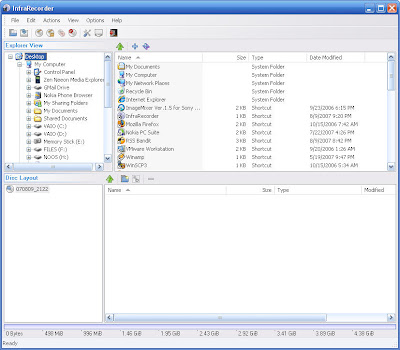
3. Done!!! I don't think I should give examples on how to use this program, it's just like other cd burning programs. I'll leave you with the program screenshot.


Friday, 3 August 2007

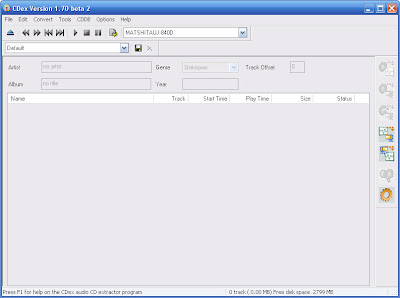
CD Ripper - CDex

I'm quite busy of doing nothing recently, the main reason for me not updating this blog. Ok, the next open-source's tool I want to introduce is CD Ripper called CDex.

CDex is able to convert CD audio into several formats including WAV, MP3 (using the LAME encoder), Ogg Vorbis, VQF, APE, and many others. It supports FLAC and other codecs using an external encoder. For convenience, it supports CD-Text to allow ripped tracks, with reduced user effort, to have the names of songs, artists and albums (Ref: Wiki).

I think the above paragraph has clearly explained the use of CDex. Let me proceed on how to use the program.

Steps

1. Download the program here. Get the latest installer version, current one is CDex 1.70 (beta 2).

2. Install it as usual, should be easy.


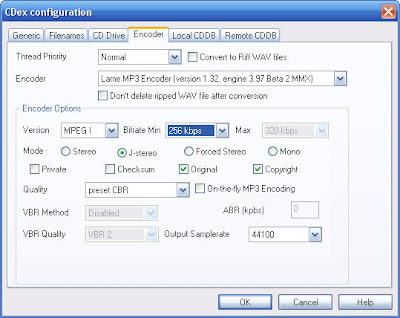
3. Click Options->Settings->Filenames to set the directory of mp3 to be saved. And click Options->Settings->Encoder to change the encoder, in this example I'm going to use LAME encoder. The screenshot below shows the setting that I always use for CD Ripping.


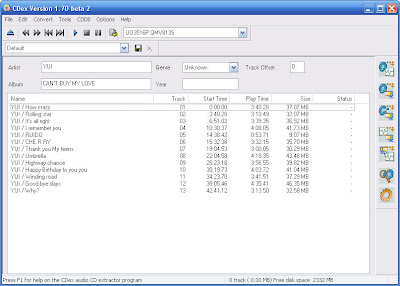
4. To rip an audio CD, just insert the CD into the cd drive. Select all tracks by clicking Crtl+A, and then click F9.


I think that is enough for today. Bah.

Monday, 9 July 2007

Eraser

Eraser is a secure data removal tool for Windows. It completely removes sensitive data from your hard drive by overwriting it several times with carefully selected patterns. (Ref: SourceForge)

Normally, when you delete files from the hard drive, the deleted files can be recovered by recovery software. This eraser tool helps us to delete files using certain overwriting methods until they cannot be recovered. This kind of software is usually used in Department of Defense (DoD), to delete top secret files securely...

Steps for using the software

1. Download it here. (Current version is 5.82)
2. Install it by following the installation wizard.

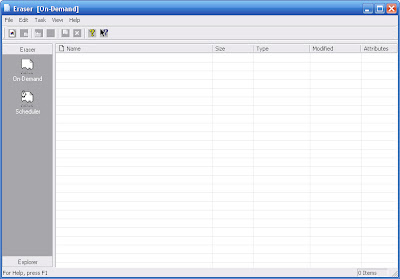
3. The program main window


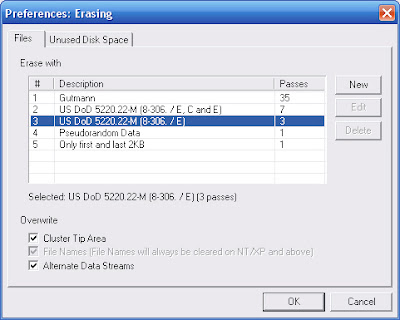
4. Go to the menu bar, and click Edit->Preferences->Erasing.


The screenshot above shows five method of erasing files (or unused disk space). GutMann is the most secure one but it takes time to erase.

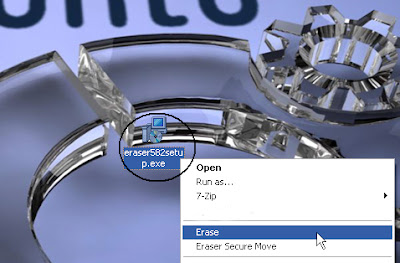
5. To erase any file securely, just right click the file and then click 'Erase'!!


Let's erase our secret!!!

Tuesday, 19 June 2007

RSS/Atom Aggregator - RSS Bandit

I'm home!!! Ok.

To start with, I need to define the meaning of several terms here (Ref:Wiki).

RSS
is a family of web feed formats used to publish frequently updated content such as blog entries, news headlines or podcasts. An RSS document, which is called a "feed," "web feed," or "channel," contains either a summary of content from an associated web site or the full text. RSS makes it possible for people to keep up with their favorite web sites in an automated manner that's easier than checking them manually.

Atom
Same idea of RSS. The development of Atom was motivated by the existence of many incompatible versions of the RSS syndication format.

Aggregator
An aggregator, rss aggregator, news aggregator, or feed reader is a client software that uses web feed to retrieve syndicated web content such as blogs, podcasts, vlogs, and mass media websites, or in the case of a search aggregator, a customized set of search results.

Function of RSS/Atom Aggregator
Aggregators reduce the time and effort needed to regularly check websites for updates, creating a unique information space or "personal newspaper." Once subscribed to a feed, an aggregator is able to check for new content at user-determined intervals and retrieve the update.

I use RSS/Atom Aggregator to read ppl blog or news. If you have more than 30 friends' blog to read everyday, it will be time consuming just to visit each friend's blog to check if there is any update. The software I use is RSS Bandit, to read RSS feed of the blogs I want to read. The software will notify me whenever there is a new blog entry has been posted.

Here are the steps of using RSS Bandit,

Installation

1. Download from RSS Bandit site, get the latest version. Current version is RSS Bandit v1.5.0.10 Released

2. Extract the software and install as usual. Note: You might need
.NET Framework, you can get it from microsoft site here.

To Add Subscription

1. Click File-> New Subscription. An add subscription wizard will appear.

2. Click Next and select I will enter the URL of the web feed or page

3. Enter the URL e.g. http://bruneiopensource.blogspot.com. Then Click Next.

4. The program will automatically getting the feed address. If the program found more than one feed addresses in a single blog, just choose one of them.

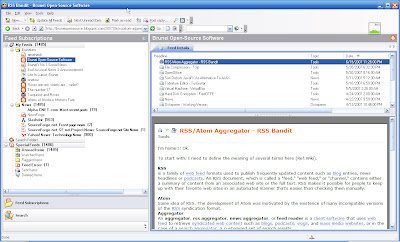
Screenshot


It's better if all Bruneian Blogs and News website has RSS/Atom feed enable. Bah.

Wednesday, 30 May 2007

File Compression - 7-zip

7-zip is a file archiver with a high compression ratio. It's just like winzip or winrar, but has new own compression format called 7z.

7-Zip is open source software. Most of the source code is under the GNU LGPL license. The AES code is under a BSD LICENSE. The unRAR code is under a mixed license: GNU LGPL + unRAR restrictions. Check license information here: 7-Zip license. (ref: from the 7-zip webiste)

(ps: even compression formula also has a license!!! this is real world is all about!!!!)

The main features of 7-zip:
  • High compression ratio in new 7z format with LZMA compression
  • Supported formats:
    • Packing / unpacking: 7z, ZIP, GZIP, BZIP2 and TAR
    • Unpacking only: RAR, CAB, ISO, ARJ, LZH, CHM, Z, CPIO, RPM, DEB and NSIS
  • For ZIP and GZIP formats, 7-Zip provides a compression ratio that is 2-10 % better than the ratio provided by PKZip and WinZip
  • Self-extracting capability for 7z format
  • Integration with Windows Shell
  • Powerful File Manager
  • Powerful command line version
  • Plugin for FAR Manager
  • Localizations for 63 languages (got malay)

Get the software from its main site http://www.7-zip.org/. Choose the non-beta version at the top at the home page. Then install as usual...

Screenshots

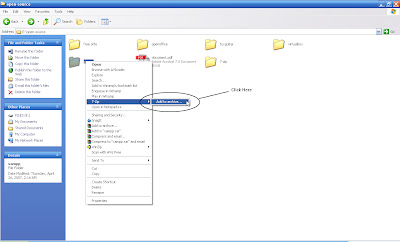
1. To compress a folder/file, right-click any folder/file, then choose choose 7-zip->add to archieve...


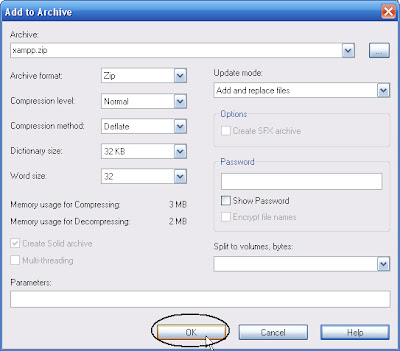
2. Then.. u get several options as shown in the screenshot below. Just press "ok" to get the default option, otherwise you can press "help" for further reading.


Ok.. i'm quite busy next month (vacation: london+berlin+venice), will update as soon as I get back... happy holiday!!!

Sunday, 20 May 2007

OpenOffice

OpenOffice is open source alternative to Microsoft Office. OpenOffice.org aims to compete with Microsoft Office and emulate its look and feel where suitable. It can read and write most of the file formats found in Microsoft Office, and many other applications; an essential feature of the suite for many users. OpenOffice.org has been found to be able to open files of older versions of Microsoft Office and damaged files that newer versions of Microsoft Office itself cannot open. However, it cannot open older Word for Macintosh (MCW) files. (Ref: Wiki)

OpenOffice.org is a collection of applications that work together closely to provide the features expected from a modern office suite. Many of the components are designed to mirror those available in Microsoft Office. The components available include:
  • Writer — a word processor similar in look and feel to Microsoft Word and offering a comparable range of functions and tools. It also includes the ability to export Portable Document Format (PDF) files with no additional software, and can also function as a WYSIWYG editor for creating and editing web pages. One important difference between Writer and Microsoft Word is that in Writer, many functions and number formats from Calc (below) are available in Writer's tables.
  • Calc — a spreadsheet similar to Microsoft Excel with a roughly equivalent range of features. Calc provides a number of features not present in Excel, including a system which automatically defines series for graphing, based on the layout of the user's data. Calc is also capable of writing spreadsheets directly as a PDF file.
  • Impress — a presentation program similar to Microsoft PowerPoint. It can export presentations to Adobe Flash (SWF) files allowing them to be played on any computer with the Flash player installed. It also includes the ability to create PDF files. Impress suffers from a lack of ready-made presentation designs. However, templates are readily available on the Internet.
  • Base — a database program similar to Microsoft Access. Base allows the creation and manipulation of databases, and the building of forms and reports to provide easy access to data for end-users. As with Access, Base is able to work as a front-end to a number of different database systems, including Access databases (JET), ODBC data sources and MySQL/PostgreSQL. Base became part of the suite starting with version 2.0.
  • Math — a tool for creating and editing mathematical formulae, similar to Microsoft Equation Editor. Formulae can be embedded inside other OpenOffice.org documents, such as those created by Writer. It supports multiple fonts and can export to PDF.
  • QuickStarter — a small program for Windows and Linux that runs when the computer starts for the first time. It loads the core files and libraries for OpenOffice.org during computer startup and allows the suite applications to start more quickly when selected later. The amount of time it takes to open OpenOffice.org applications was a common complaint in version 1.0 of the suite, and Quickstarter was a solution of sorts. Substantial improvements were made in this area for version 2.0.
  • The macro recorder — is used to record user actions and replay them later to help with automating tasks, using OpenOffice.org Basic
Ok, all above writing is copy and paste from wiki!!! I don't have to explain how to install or configure it since the program function is almost similar to Microsoft Office. Let me just show you some screenshots.

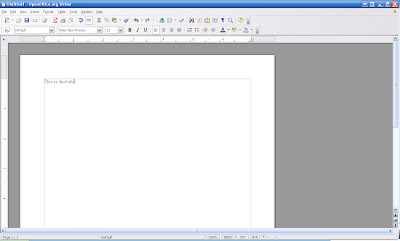
1. Writer (similar to ms word)


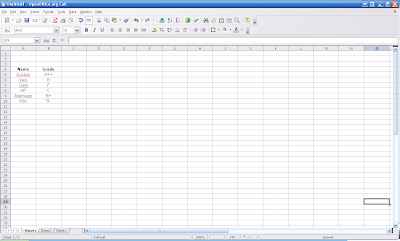
2. Calc (similar to ms excel)

Thursday, 10 May 2007

Tablature Editor - TuxGuitar

TuxGuitar is an open source software program written in Java. It is a tablature editor, score writer and player targeted at guitarists (Ref: wiki).

I don't want explain much on this program since this program is an open-source alternative (still need to improve!!!) to Guitar Pro. I think the main difference is Guitar Pro output sound is based on midi library, but TuxGuitar is taken from Java soundbank.

TuxGuitar Functions:
  • Tablature editor
  • Score Viewer
  • Multitrack display
  • Autoscroll while playing
  • Note duration management
  • Various effects (bend, slide, vibrato, hammer-on/pull-off)
  • Support for triplets (5,6,7,9,10,11,12)
  • Repeat open and close
  • Time signature management
  • Tempo management
  • Imports midi, tg, ptb, gp3, gp4, gp5 files
  • Exports midi, ascii, gp3, gp4
This time I'm lazy to put detail screenshots on how to configure the program.

Steps:
1. Download TuxGuitar
- choose the installer base on your operating system

2. Download Java SoundBank
- choose the deluxe one

3. Install TuxGuitar
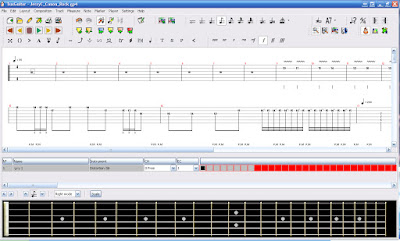
- after installing, launch the program and go to the program Settings->Configure TuxGuitar
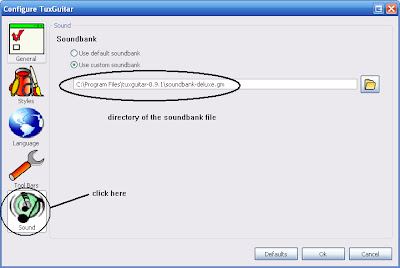
- then go to Sound as shown in the screenshot below and target the directory's path to the java soundbank file.


4. At this stage, the program is almost configured, and you need is a file sample to play. Download CanonRock by JerryC (or can google any supported files to play) and try to play it.


Ok, happy practising guitar!!!

Saturday, 5 May 2007

Virtual Machine - VirtualBox

Ever thinking of using different operating systems (OS) that you have never tried before? Maybe using linux distro (e.g. ubuntu, debian), windows (e.g. win2000, vista), or even mac OS, and so on. If you only have one desktop/laptop, I think you might thinking twice before experimenting with those OS because you need to reformat your hard disk, backup necessary files and you might face few technical difficulties during the OS installation.

Here is the solution, get a virtual machine!! A virtual machine is software that creates a virtualized environment between the computer platform and its operating system, so that the end user can operate software on an abstract machine (Ref: Wiki).

One of Virtual Machine softwares is called VirtualBox. Ok, lemme tell you how to use this software. I assume you know how OS installation work, but if not... experiment it since VM won't do any harmful (I guess so) .. because it's all virtual!!!

Here are the steps

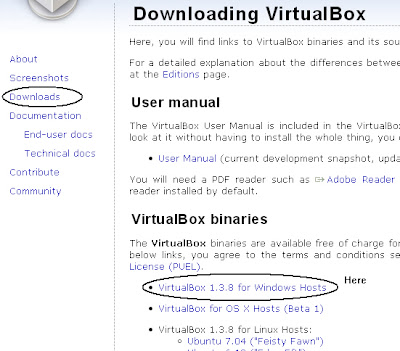
1. Download the software


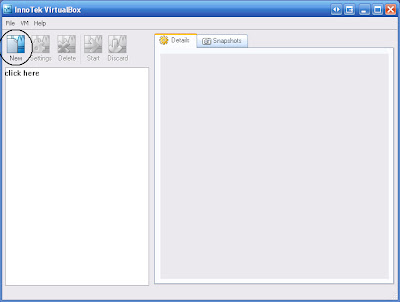
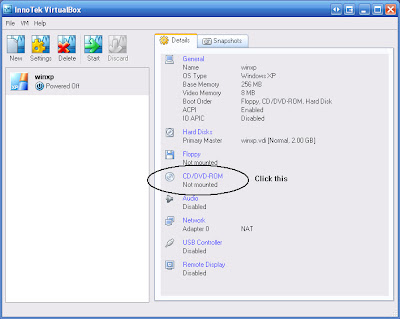
2. Install it using the wizard provided (should be easy). After the installation, run the program. Click "New" as shown in the diagram below.


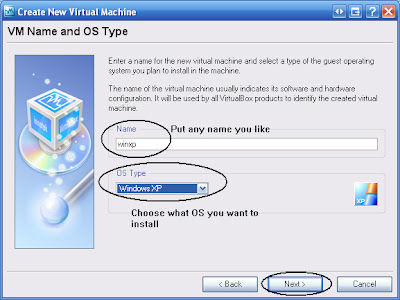
3. Click Next, then you'll see the window as below. I chose to install windows xp. It doesn't matter whether it's home edition or professional series.


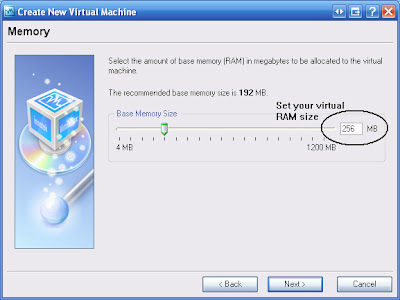
4. Choose the Virtual RAM size. My physical RAM is 1GB and I chose 256MB RAM for my virtual machine RAM (1/4 of the physical one). I don't really recommend to have VM RAM size greater than the host machine.


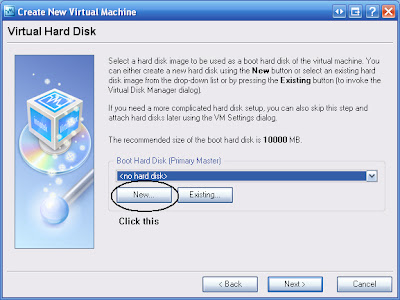
5. Create VM hard disk.


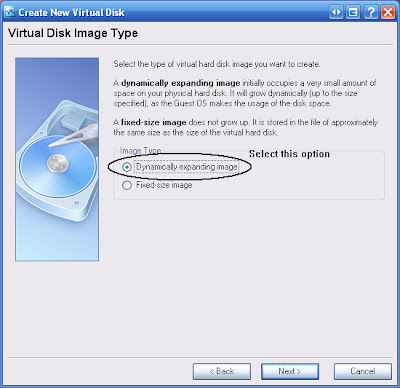
6. Choose Dynamic size hard disk (since I like it)


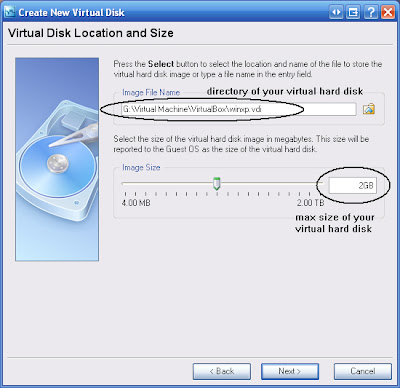
7. Choose the directory you want to store the image file, and the maximum size you want. 2GB is enough for this experiment.


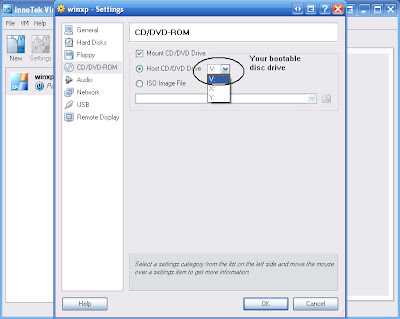
8. After the above steps finish, you'll be taken to the main window again. Choose your CD/DVD ROM where you boot the OS.


9. I chose mine, V


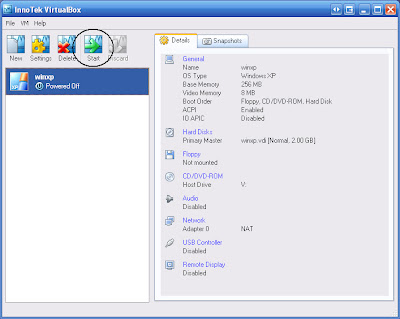
10. Start the VM machine


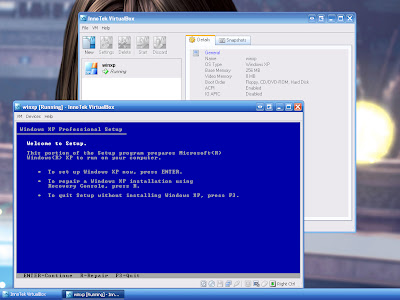
11. This image down here should be look familiar to some of you. I was running windows XP on my laptop, and was running windows XP on my Virtual Machine as well... quite a boring experiment.


Conclusion,
Virtual Machine allows you to run OS (guest) inside an OS (host). So before migrating to new OS like Vista (yeah it's not open-source OS), you can try it safely in Virtual Machine!!! Until then... maybe I like to share to you on how to run Mac OSX inside Windows. Bah.

(p/s: never believe what ppl say until you try it urself. Reading without trying is useless.)

Tuesday, 24 April 2007

Hard Disk Encryption - FreeOTFE

Hard disk encryption is a way to protect data stored on a computer disk. Our operating system (OS) does provide access restrictions to protect data but unfortunately it can easily be by-passed e.g. when the OS is not active, then the data might be read directly from the hardware. I'm sure few of you ever use folder lock, or maybe software that allow to hide important stuffs from other people to see but that approach is not good enough.

I like to share an open-source software called FreeOTFE. This software use "on-the-fly" disk encryption (OTFE) technique. It creates "virtual disks" - anything written to which is automatically encrypted before being stored on the computer's hard drive or USB drive. Numerous encryption (including AES, Blowfish, Twofish, Serpent, etc) and hash algorithms (SHA-512, Tiger, Whirlpool, MD5, etc) are supported, with a modular architecture that allows 3rd parties to implement additional algorithms if required.

The program operates under both PC (MS Windows 2000/XP) and PDA (Windows Mobile 2003/2005) platforms. In case of Linux, please read the manual on the site. (p/s: i'm windows user and only run linux on virtual machine or live cd only). Note: never try this software if your are not so sure what your are doing.

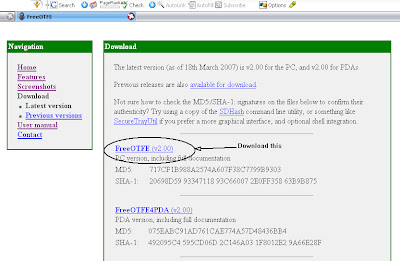
Download the software here, http://www.freeotfe.org/download.html


Installation

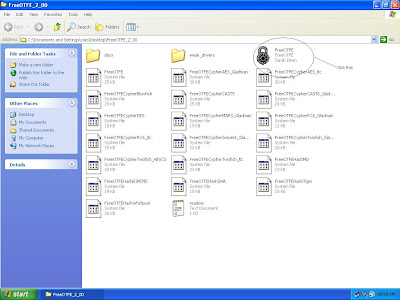
1. Extract the zip file


2.


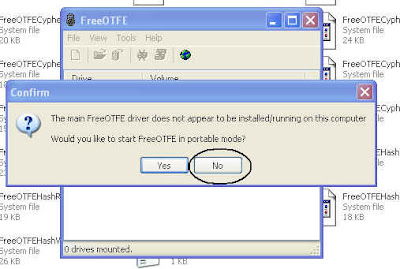
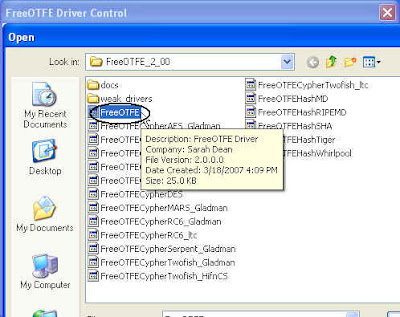
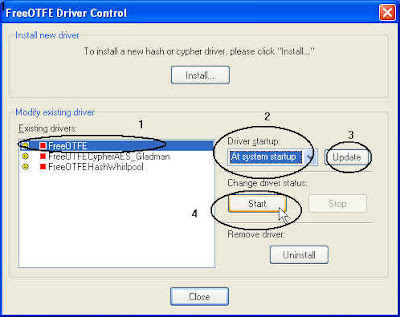
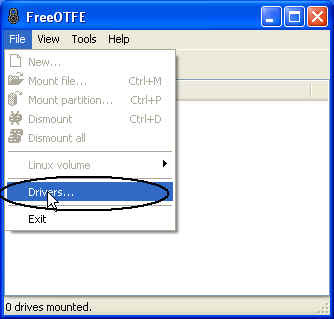
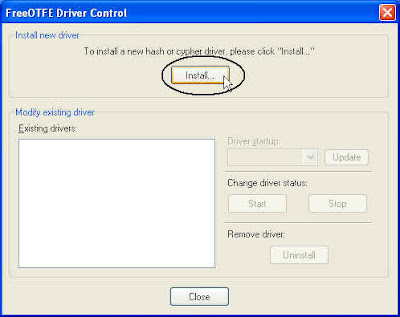
3. Install the drivers


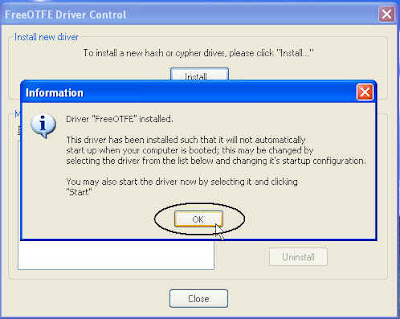
4. First install FreeOTFE driver


5.


6.


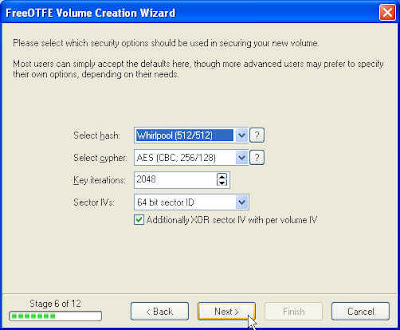
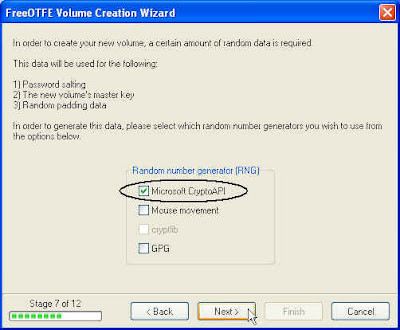
7. After installing the FreeOTFE driver, then install the cypher and the hash. In this example, I'm using AES_Gladman cypher and whirlpool hash.


Configuration

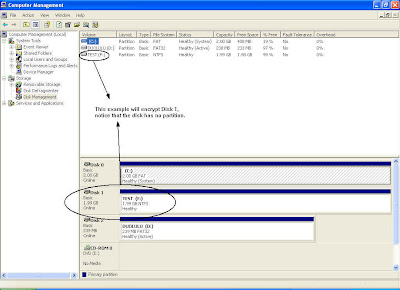
Little knowledge on Hard Disk management is required here such as the physical hard disk and its partition. The screenshot shown below is taken from my virtual machine (that is why the disk space is very low). Go to start-> control panel -> administrative tools -> computer management -> disk management.

Disk 0 - primary hdd where the OS is running
Disk 1 - second hdd
Disk 2 - third hdd

I'm going to encrypt Disk 1, notice that there is only a single partition on that hdd. The hdd does not necessary to be empty, formatted or not. For this example, Disk 1 is not empty and has few files in it, and it uses NTFS file system.

8.


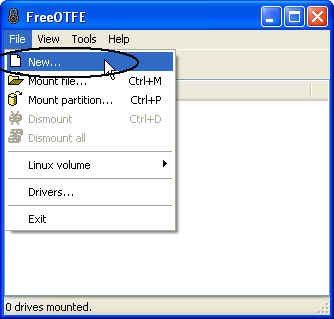
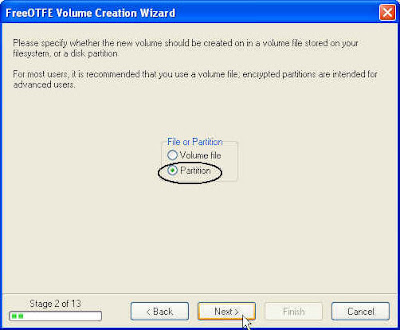
9. Now I start to configure a drive, and try to encrypt it.


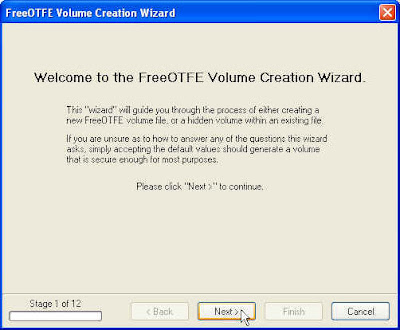
10.


11.


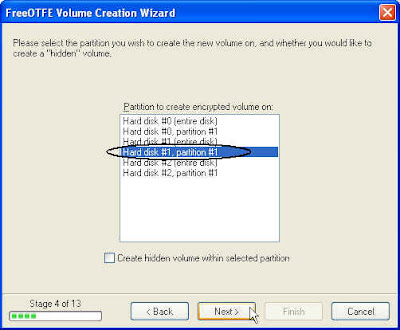
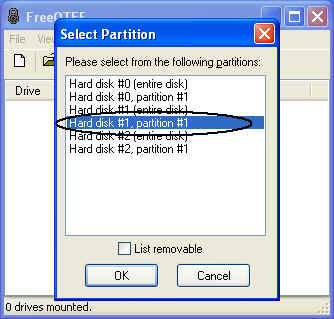
12. Select the partition as identified in step 8.


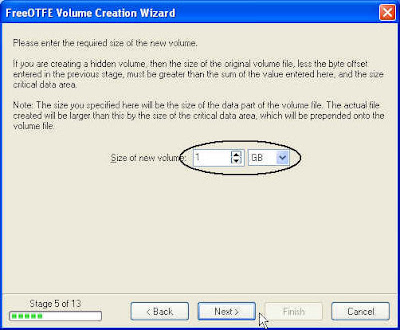
13. Make sure the size selected is lower than the physical partition. My Hard Disk 1 partition is 2GB and the encrypted volume is 1GB.


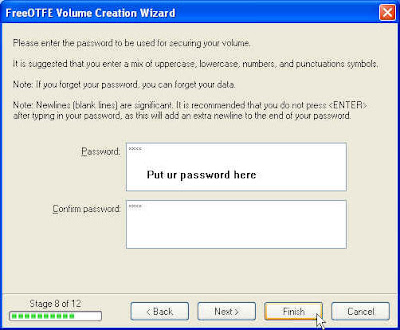
14. Just follow it.


15.


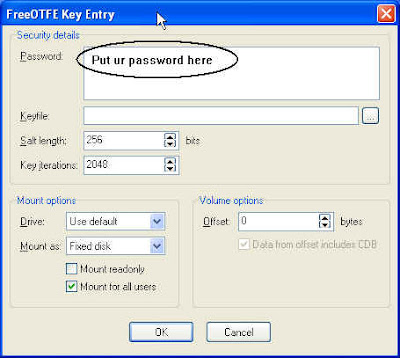
16.


Mount the Encrypted Hdd

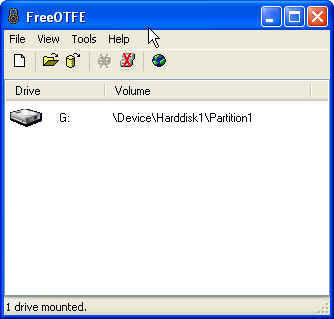
After the drive is encrypted, then it needs to be mounted in order to use it.


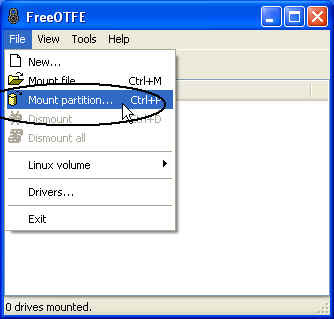
17.


18.


19.


20.


In My Computer, another disk will appear.. that disk is encrypted. Ok.. bah.